Physical Address
304 North Cardinal St.
Dorchester Center, MA 02124
Physical Address
304 North Cardinal St.
Dorchester Center, MA 02124

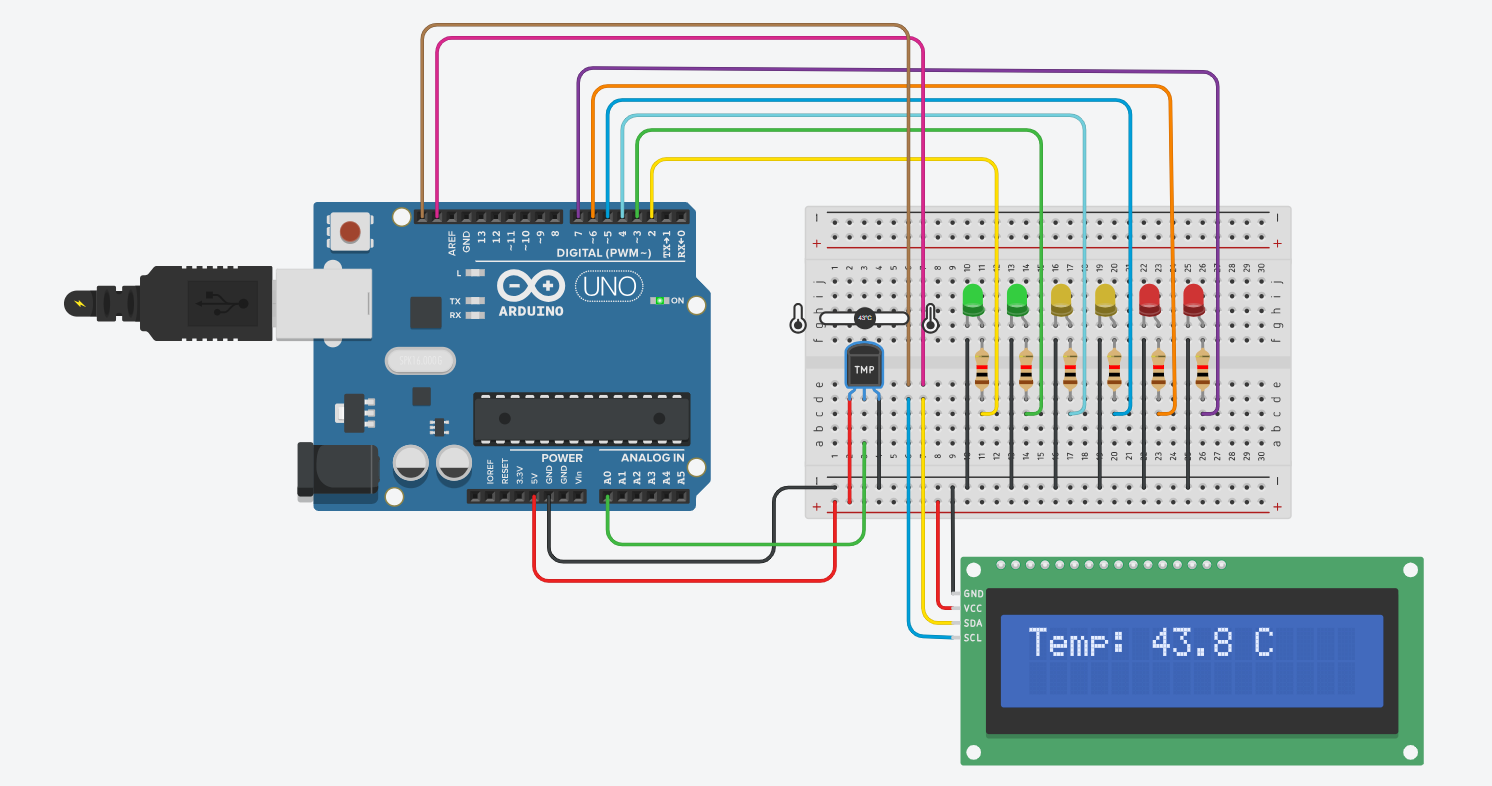
In this upgraded version of the LED temperature meter, we’ll display the current temperature in real-time on a 16×2 LCD alongside the LED bar. The LEDs light up based on temperature level, while the LCD gives you the exact number in °C.
This post may contain affiliate links. If you purchase through these links, I may earn a small commission at no extra cost to you. It helps support this blog and keeps the projects coming—thanks for your support!
Facing the flat side of TMP36 with the text facing you:
| TMP36 Pin | Connects to | Description |
|---|---|---|
| 1 (VCC) | 5V | Power supply |
| 2 (VOUT) | A0 | Analog output to Arduino |
| 3 (GND) | GND | Ground |
| I2C LCD Pin | Arduino Pin |
|---|---|
| GND | GND |
| VCC | 5V |
| SDA | A4 |
| SCL | A5 |
LEDs: Connect to digital pins D2 through D7, each with a 220Ω resistor.
#include <Wire.h>
#include <LiquidCrystal_I2C.h>

const int tempPin = A0;
const int ledPins[] = {2, 3, 4, 5, 6, 7};
const int ledCount = 6;

LiquidCrystal_I2C lcd(0x27, 16, 2); // Adjust I2C address if needed

void setup() {
  lcd.init();             // Use lcd.init() instead of lcd.begin() for Tinkercad
  lcd.backlight();
  lcd.setCursor(0, 0);
  lcd.print("Temp: --.- C");

  for (int i = 0; i < ledCount; i++) {
    pinMode(ledPins[i], OUTPUT);
  }
}

void loop() {
  int sensorValue = analogRead(tempPin);
  float voltage = sensorValue * (5.0 / 1023.0);
  float temperatureC = (voltage - 0.5) * 100.0;

  // Display temperature on LCD
  lcd.setCursor(6, 0);
  lcd.print(temperatureC, 1);
  lcd.print(" C ");

  // Map temperature to LED level (20–40°C → 0–6 LEDs)
  int level = map(temperatureC, 20, 40, 0, ledCount);
  level = constrain(level, 0, ledCount);

  for (int i = 0; i < ledCount; i++) {
    digitalWrite(ledPins[i], i < level ? HIGH : LOW);
  }

  delay(500);
}
This enhanced version of the temperature bar adds an I2C LCD screen to display the temperature value in real-time while lighting up LEDs as a visual indicator.
#include <Wire.h>
#include <LiquidCrystal_I2C.h>

const int tempPin = A0;
const int ledPins[] = {2, 3, 4, 5, 6, 7};
const int ledCount = 6;

LiquidCrystal_I2C lcd(0x27, 16, 2); // Adjust I2C address if needed
– Wire.h and LiquidCrystal_I2C.h are needed to control the I2C LCD.
– lcd(0x27, 16, 2) initializes the LCD with I2C address 0x27 and a 16×2 layout.
void setup() {
  lcd.init();             // Use lcd.init() instead of lcd.begin()
  lcd.backlight();
  lcd.setCursor(0, 0);
  lcd.print("Temp: --.- C");

  for (int i = 0; i < ledCount; i++) {
    pinMode(ledPins[i], OUTPUT);
  }
}
– Initializes the LCD and turns on the backlight.
– Displays a placeholder temperature on the first line.
– Configures all LED pins as OUTPUT.
int sensorValue = analogRead(tempPin);
float voltage = sensorValue * (5.0 / 1023.0);
float temperatureC = (voltage - 0.5) * 100.0;
– Reads the analog value and converts it into voltage.
– Applies TMP36 conversion to get temperature in Celsius.
lcd.setCursor(6, 0);
lcd.print(temperatureC, 1);
lcd.print(" C ");
– Moves the cursor to overwrite the temperature section.
– Displays the temperature with 1 decimal place followed by “°C”.
int level = map(temperatureC, 20, 40, 0, ledCount);
level = constrain(level, 0, ledCount);
– Translates temperature from 20–40°C into 0–6 LED levels.
– Ensures the number of LEDs stays within the valid range.
for (int i = 0; i < ledCount; i++) {
  digitalWrite(ledPins[i], i < level ? HIGH : LOW);
}
– Turns on LEDs corresponding to the current temperature level.
– Creates a simple LED thermometer effect.
delay(500);
– Adds a short delay between readings to prevent flickering.
(voltage - 0.5) * 100.0.F = C * 1.8 + 32If you’re just getting started with Arduino, these beginner-friendly kits will help you learn faster and avoid the headache of missing parts. They all include essential components like LEDs, resistors, jumper wires, and an Arduino-compatible board.
💡 Tip: Choose a kit with a good variety of components so you can build multiple projects without buying extra parts later.